
Up until now we have been using a static camera again, without really having the freedom to move around and explore, which is partly what a 3D World is all about, So now its time to add movement to our camera, we previously setup the camera to use a FPS style camera using Global Values.
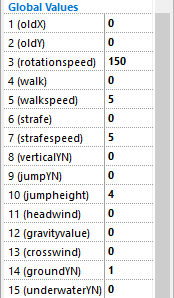
The FPS camera is being fed the global values as part of always line we entered earlier, now we have to change them based on keys we press. Lets setup the standards WASD style movements you could of course set them up using cursor keys or any keys you want.
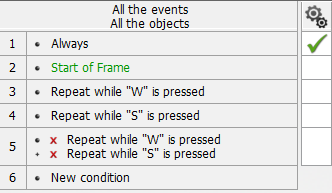
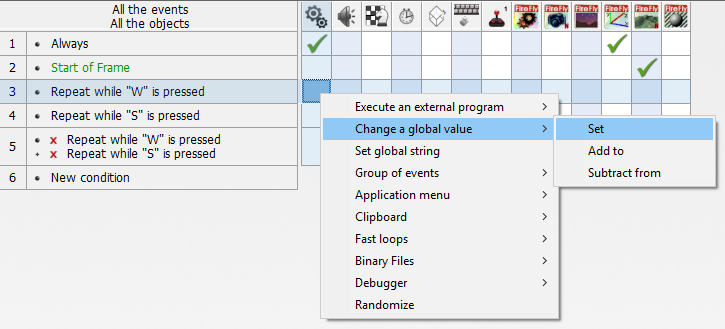
Create 2 new conditions Repeat While W is pressed and Repeat While S is pressed also create another condition with both of them again but Negate both of them; to Negate a condition right click on it and select Negate you will know if its negated as it will have a red X in front of it. For the W condition we want to walk forwards so right click where the W and the special conditions meet and select Change a Global value -> Set
Change the global value to Walk for the expression, click on the special conditions and choose Retrieve a global value and select walkspeed
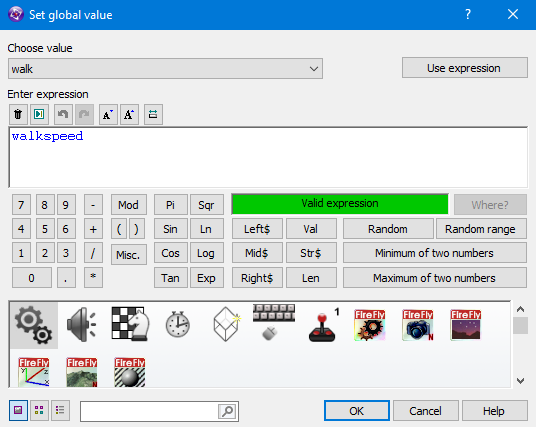
Do the same for the Repeat when S key is pressed but change the text to read 0 - walkspeed instead of just walkspeed, do the same again for the Negated conditions but this time leave walk at 0.
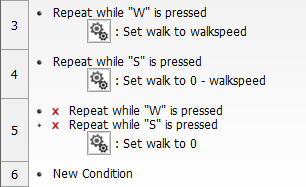
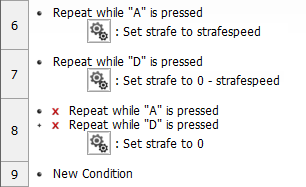
That's the forwards and backwards keys done, now its time for the strafe left and strafe right, create the same conditions as you did before but for the Keys A and D and set the strafe value to strafespeed. the D key will be the 0 - strafespeed.
If you have a quick walk round now you will see everything is working as it should except we cannot go up or down, we could just change the verticalYN setting to 1 which will allow us to travel in the direction of the camera also known as Camera Free-mode, however most FPS games use jumping and gravity, firstly lets turn gravity on set the global value gravityvalue to -1 ensure the terrain has collision on and the camera has collision on with a radius XYZ of 9.
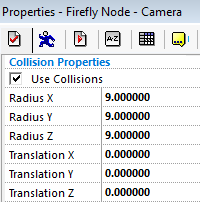
we have built in some gentle nudge up and down technology for the FPS camera so you may notice it jumping up and down slightly as the ground moves beneath your feet however you can still go through the ground and eventually fall forever if you get too far away from the terrain. to solve this we need to include some camera collision.
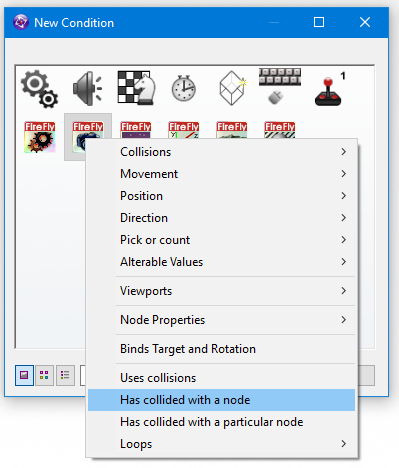
Create a new condition and click on the Firefly Node - Camera and select Has collided with a node from the menu, where that new condition meets the Firefly Node - Camera right click and select Node Properties -> Position -> Set Position.
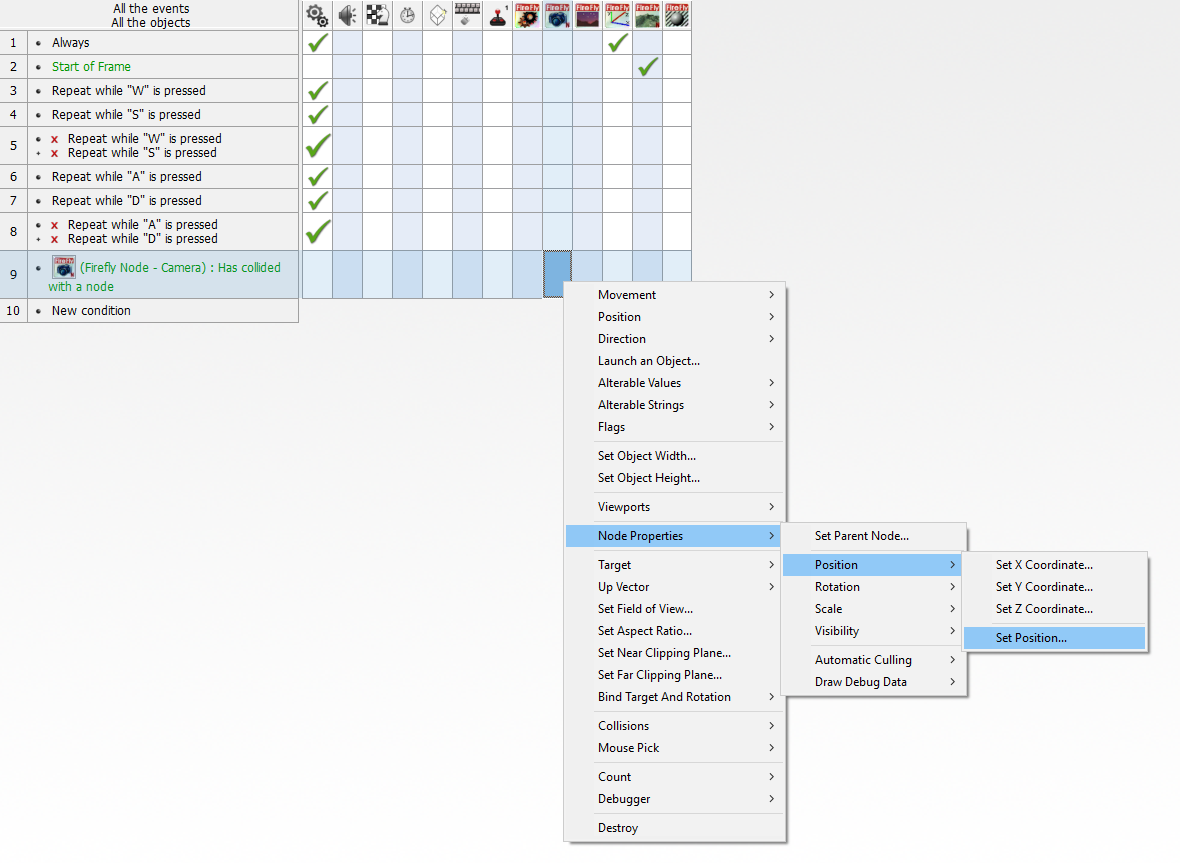
Once the camera has collided with the terrain we want to pull the camera back to the point where it hit the terrain thus ensuring that it never goes through the terrain, to do this we need to get the co-ordinates of the place where it hit, firstly with the X location, click on the Firefly Node - Camera icon and select Collisions -> Get X Collision Location
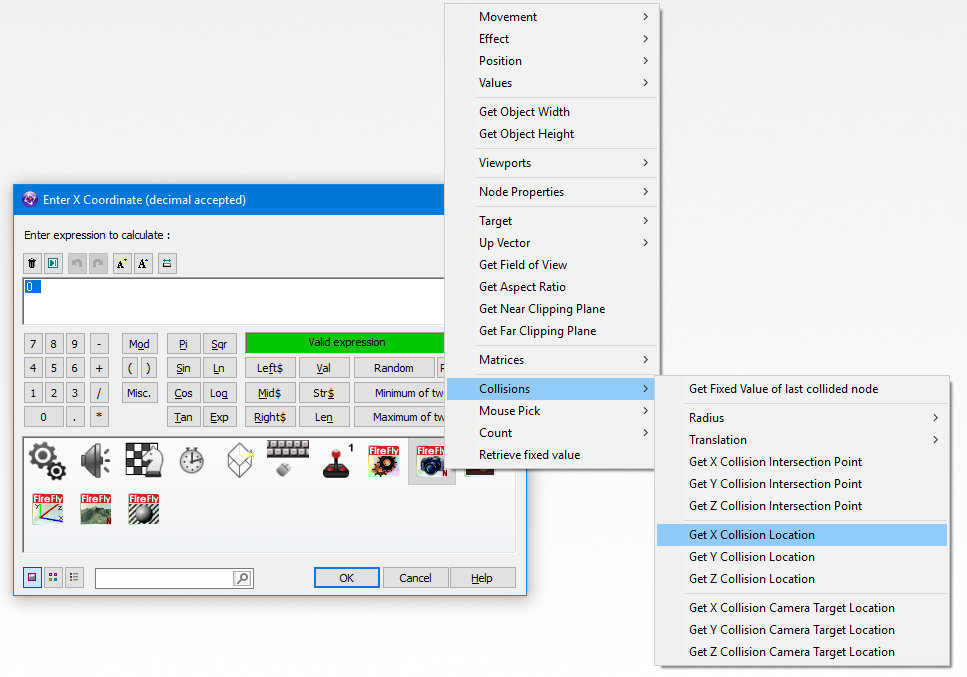
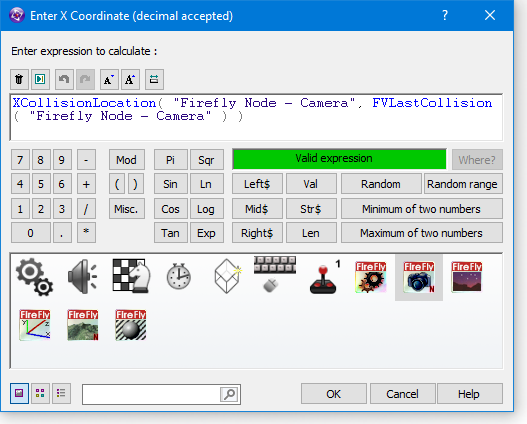
The text now shows XCollisionLocation( "Firefly Node - Camera", >Enter Fixed Value of Firefly Node< ) it highlights the >Enter Fixed Value of Firefly Node< section for you - with the text still selected choose the Firefly Node - Camera icon again and select Collision -> Get Fixed Value of last collided node, the text should now match this and the green light should be showing if it isn't check the comma (,) is still between the 2 expressions or look at the red light for clues as to what is wrong.
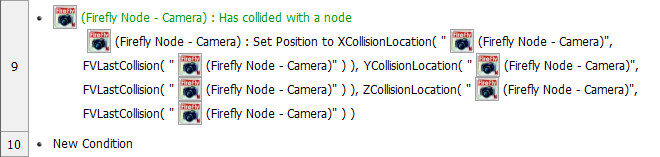
Do the same for both the Y and the Z co-ordinates choosing Collisions -> Get Y Collision Location and Collisions -> Get Z Collision Location but still using the same Fixed Value for all 3, when all 3 have been entered the condition should look like this.
If you take a walk round now you will see the movement is a lot better with the player going up and down hills that are not too steep. The next thing we need to add is a jumping movement, lucky the FPS Camera handles that too, create a new condition, click on the Keyboard/Mouse icon and select Keyboard -> Upon pressing a key when prompted press the spacebar.
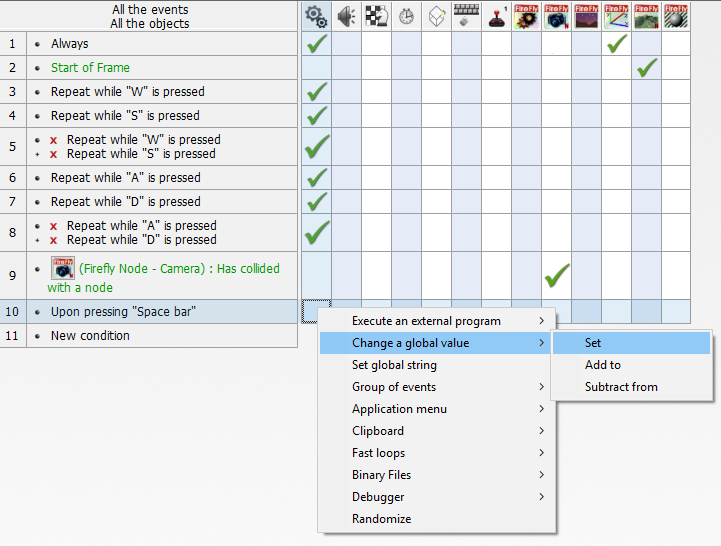
Right click where the Spacebar and the special conditions meet and select Change a Global value -> Set Change the global value to jumpYN for the expression, and type 1, this will set the jump on/off value to on which will tell the FPS camera you want to jump it will then read the jumpheight value of 4 and divide that by 10 giving us 0.4. you could of course change the jumpheight to something other than 4 to give your players a very high jump or a very low one.
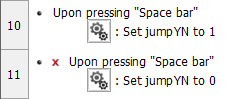
What goes up must come down, create a new condition, click on the Keyboard/Mouse icon and select Keyboard -> Upon pressing a key when prompted press the Spacebar, now Negate> the condition so that it will activate when we let go of the space bar, Right click where the negated Spacebar and the special conditions meet and select Change a Global value -> Set Change the global value to jumpYN for the expression, and type 0, this will set the jump on/off value to off.