
Now we have the Sky and are able to look around its time to start adding the rest of the world, starting with some terrain. Terrains in Firefly consist of a black and white heightmap and a colored image for the terrain texture. Add the Firefly Node - Terrain and click on the heightmap setting and then the choose file icon.
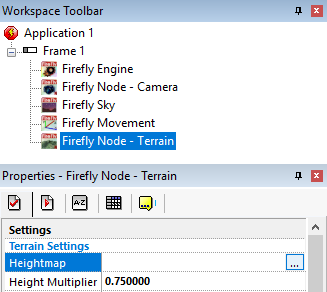
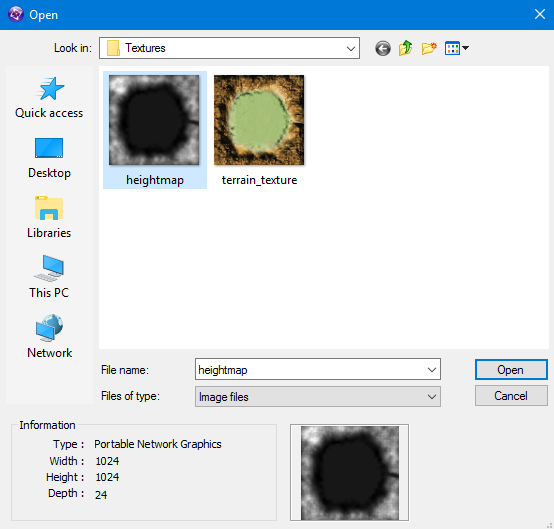
Navigate to the textures directory and select the heightmap file. the heightmap file contains height data for our terrain at certain scale, now we could just import it at that scale however for our game we need the Height Modifier to be set at 0.75 which is 75% of the scale data held in the heightmap file, this will make all the hills and valleys in our terrain less higher than they are in the heightmap.
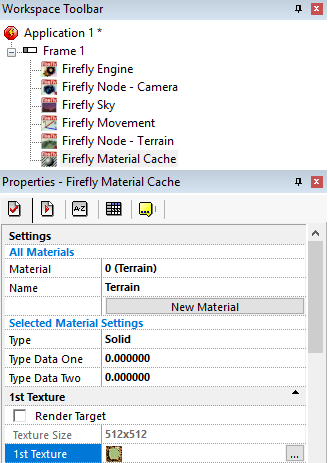
The terrain also needs a texture, as we don't have a Firefly - Material Cache add one now and rename the first material (0) to Terrain and set the first texture to the terrain_texture file.
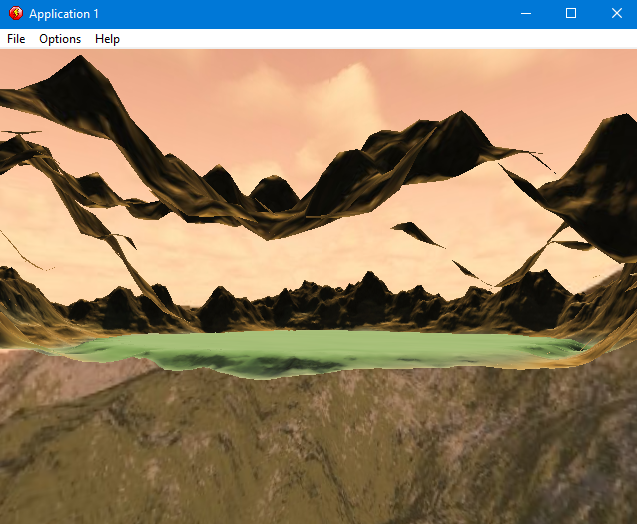
If you run the game now you will see something like this, if yours is mostly black remember to assign the material to the terrain and turn off lighting in the Material Cache, if its in color well done but wow that still looks like it has a lot of issues, in fact it only really has 1 issue and that's the fact your standing underneath one of the mountains and this terrain has backface culling turned on. Culling is system that turns some things off to save CPU and rendering time, which is a good thing however if we were inside a cave system or something like that we would need to turn off backface culling so we could see from both sides but there are no caves in this game so leave backface culling on.
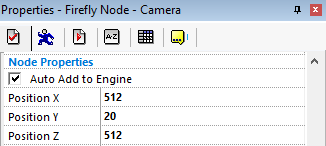
To solve the issue we either need to move the terrain to our person or our person to the terrain, as they are both at 0,0,0 - lets move the person, the terrain heightmap we loaded was 1024x1024 so the terrain is also 1024x1024 lets place our person in the centre of the terrain so that would be 512,0,512 however 0 is water level and this map has an island in the middle so raise the Y by about 20, as our person is just a camera at the moment, change the camera position X to 512, the Y to 20 and the Z to 512.
Lets have a look now and see our perfectly beautiful landscape. run the game and have a look round see what you think.
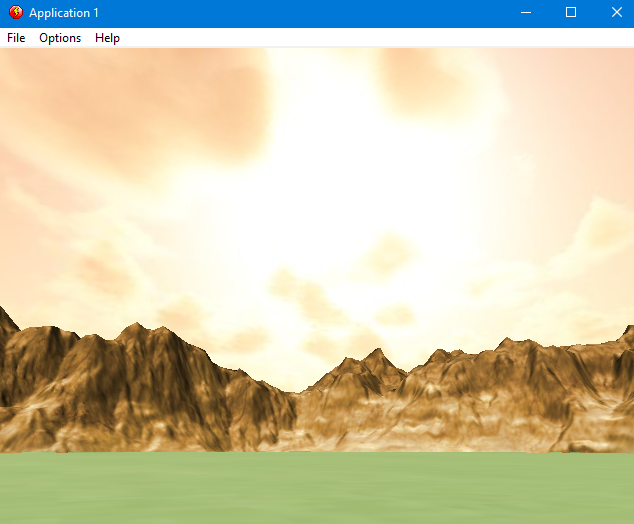
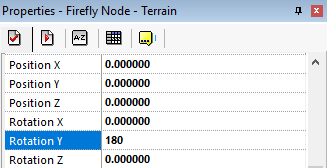
Did you notice something was a little off ? but you couldn't quite think what it was ? or maybe you were smart enough to notice the shadows on the mountains were wrong ? the mountains in front of the sun were lit up when they should of been in the shade, while the mountains on the opposite side of the sun which should of been lit up by the sun were in the shade. This terrain texture is using a technique known as Pre-Baking Texture Shadows this saves a lot of CPU and rendering time as well, however in order for it to work you need to ensure the sun is coming from the same angle as the pre-baked sun, to make this happen for our terrain - rotate the Terrain by 180 in the Y Axis.
There we go much better now, however the human eye is still picking up something its not too sure about, this is the fact that the mountains clarity in the distance is the same as the clarity up close, game makers have come up with many ways to combat this most use a blurring technique called Depth of Field, some use a fogging technique, for this tutorial we will be using the fogging technique, the Firefly Engine contains our fog settings, lets see what we have.
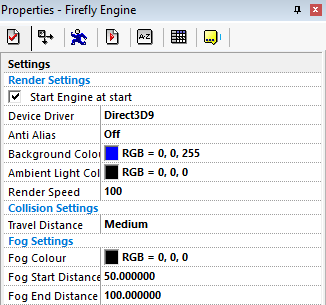
Before we start messing with the fog settings, lets turn fog on - go-to the material cache and turn on fog for the terrain. run the game and see what it does, you should of noticed it turned all the mountains black, which is true but not exactly the whole truth, what it actually did was start turning anything that was 50 units away from your black by the time it was 100 units away everything should be black. Notice how those numbers look familiar ? as we are 512 units away from the mountain change the Fog End Distance to 512 and look again, now it should just be turning the mountains to full black. Now you understand how fog works lets make it so that our eyes get fooled into thinking things are real.
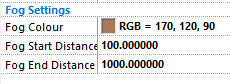
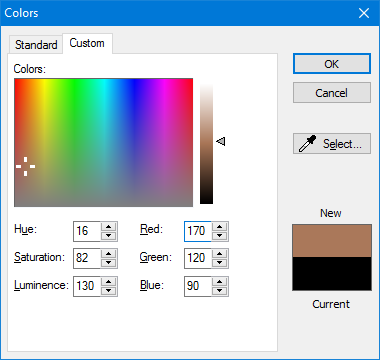
Set the color setting to 170,120,90 to do this click on it and in the small pop-up press the OTHER button, which will open another larger window, change the tab at the top to Custom and change the Red, Green and Blue values like so.
Set the Fog Start Distance to 100 and the Fog End Distance to 1000. now you maybe wondering why did i set the fog end distance to 1000 and not 512 like we did in the test earlier? simple at the moment we are stood in the middle of the terrain so the mountains are 512 away but when we start walking around the mountains will get closer or further away but will never be more than 1024 away.
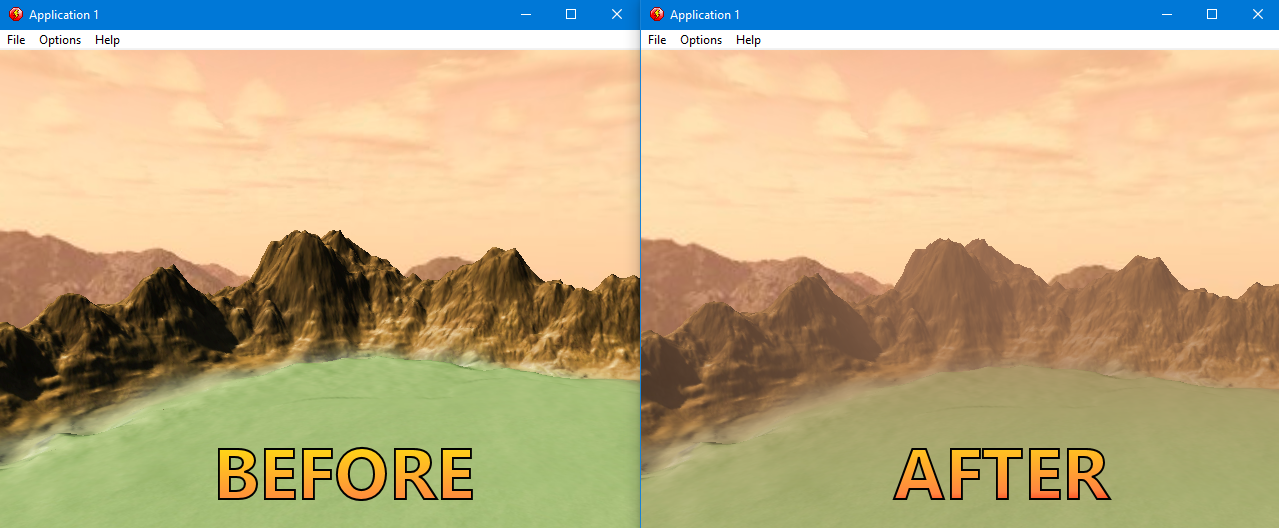
hopefully you can see that the after fog screenshot looks better than the before screenshot due to the mountains blending in with the background skybox so instead of feeling like your inside a small square of land, you feel like your in a massive world with many more areas in the distance.